
Guide
How to Create a Reminder
This guide will walk you through the steps to create your first reminder using Reminder Pro. You can set reminders using both slash commands and the web dashboard, giving you flexibility in how you manage your reminders.
1. Set Timezone First
-> Before creating reminders, make sure to set your server timezone using the methods described in the previous guide. Setting the correct timezone ensures that your reminders trigger at the expected local time.
2. Using Slash Command to Create Reminder
Use /reminder add to create a new reminder with tons of customization options. Navigate to section 4 for detailed explanation of all available options.
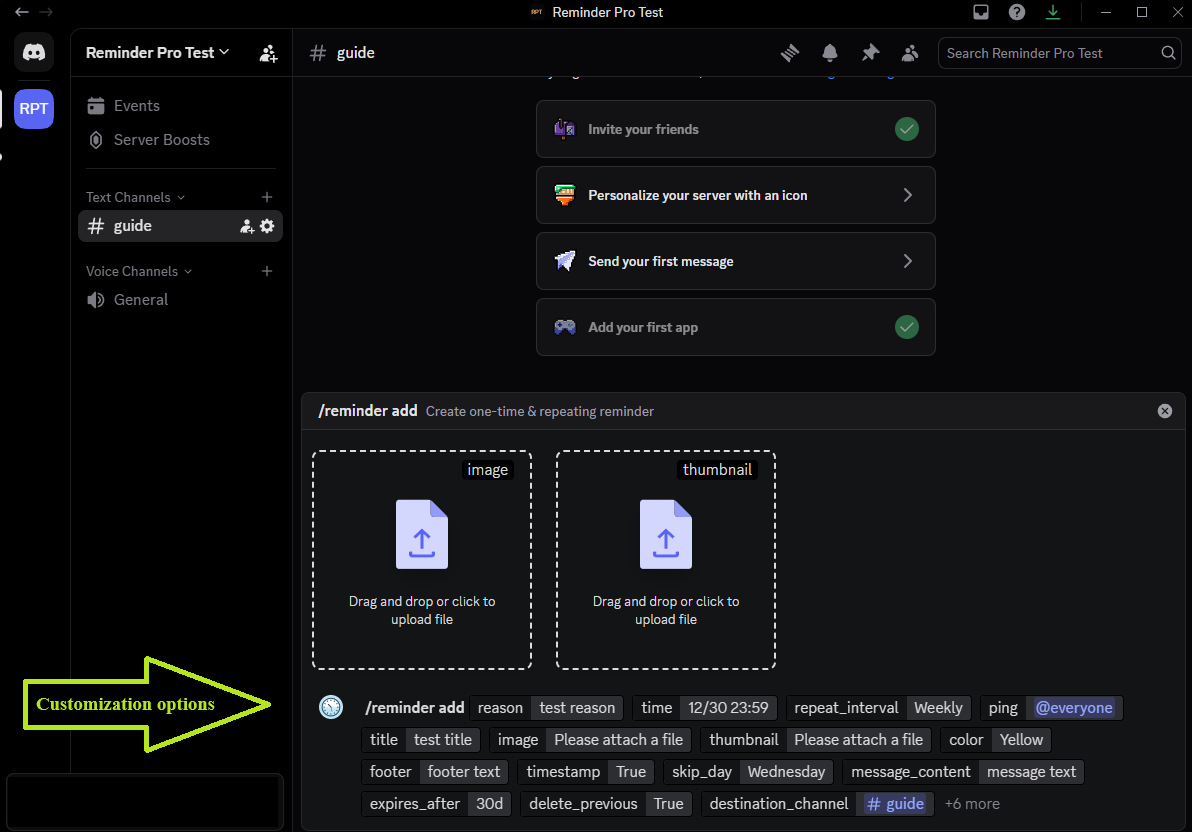
- Slash Command:
/reminder add - Common Time Formats:
12/30 23:59,2d 3h 4m 5s - All time formats: Use
/help->Time formats guide
3. Using Web Dashboard to Create Reminder
Use the web dashboard to create a new reminder with a user-friendly interface. Navigate to the Reminders section and click Create Reminder.
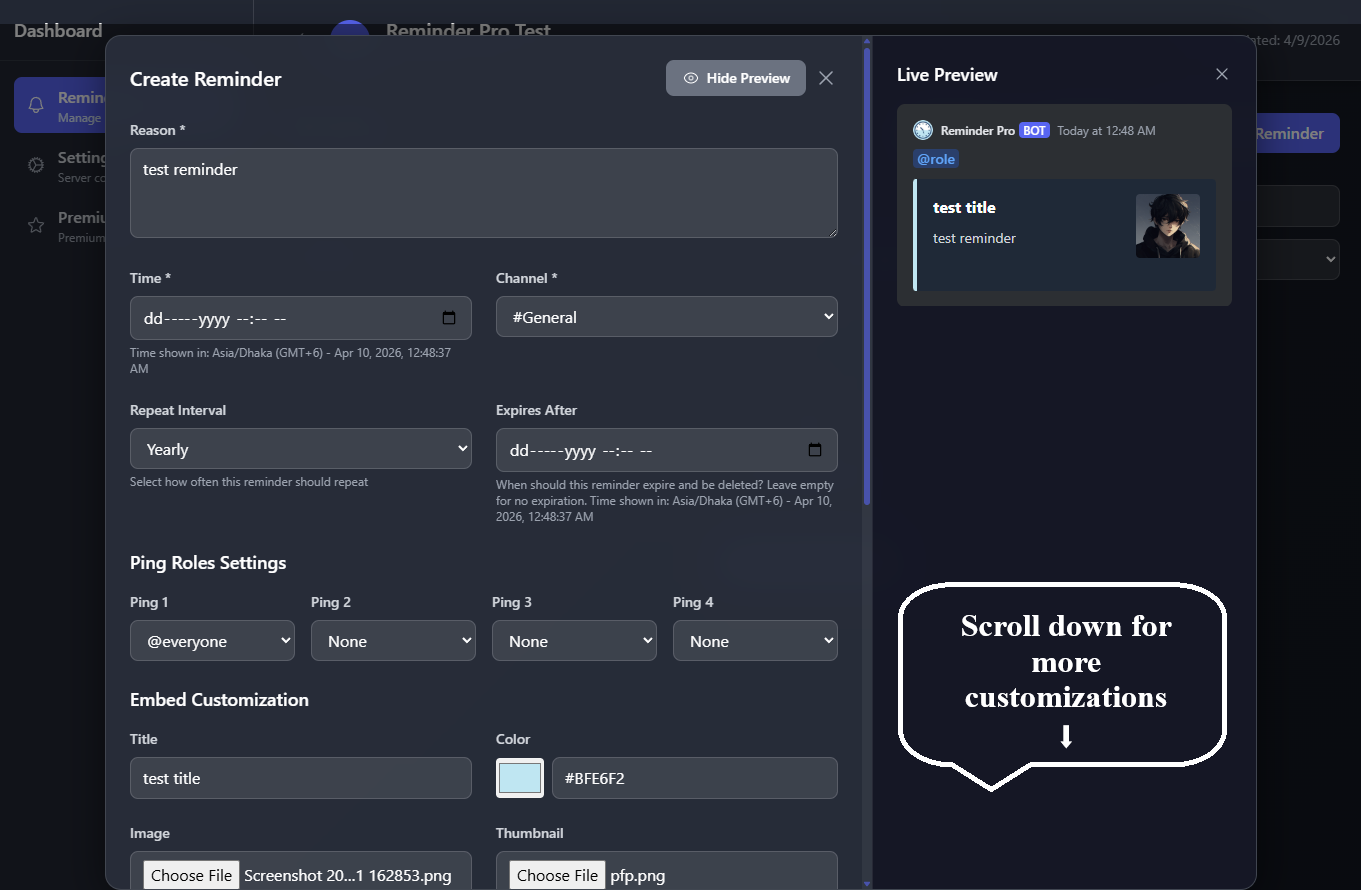
- Navigate to the
Reminderssection and clickCreate Reminder - Fill in the reminder details such as title, description, time, and any additional options.
- Click
Createto create the reminder.
4. Reminder Creation Options Explained
When creating a reminder, you have various options to customize your reminder according to your needs. Below is an explanation of the common options available when creating a reminder using slash commands or the web dashboard.
- reason: What this reminder is for. Max length:
4000. Shown in the embed description. - time: When to trigger. Supports formats like
12/30 23:59or2d 3h 4m 5s. - repeat_interval: How often to repeat:
daily,weekly,monthly,yearly, orcustom. - custom_interval: Custom repeat interval when
repeat_intervalis set tocustom(example:2d 3h 4m 5s). - ping, ping_2, ping_3, ping_4: Mention up to four users or roles in the reminder.
- title: Add embed title. Max length:
256. - image: Upload an image attachment for the reminder embed.
- thumbnail: Upload a thumbnail attachment for the reminder embed.
- color: Embed color preset. Examples include
Red,Green,Blue, and more. - footer: Footer text in the embed. Max length:
2048. - timestamp: Toggle footer timestamp on the reminder embed.
- skip_day, skip_day2, skip_day3: Skip selected weekdays (
Monday,Sunday, etc.) for recurring reminders. - message_content: Extra message text shown after pings. Max length:
2000. - expires_after: Auto-expire (delete) the reminder after a duration or date (examples:
30d 12h,12/30 2029). - delete_previous (Premium): Delete the previous reminder message before sending a new one.
- destination_channel: Send reminder to a specific channel (defaults to the current channel).