
Creating a Reminder
Create a Discord reminder with the /reminder add command or the Reminder Pro web dashboard. A complete reference of every option, its limits and what it does.
On this page
With the /reminder add command
Run /reminder add in any server channel. Discord shows the options as you type. reason and time are required; everything else is optional.
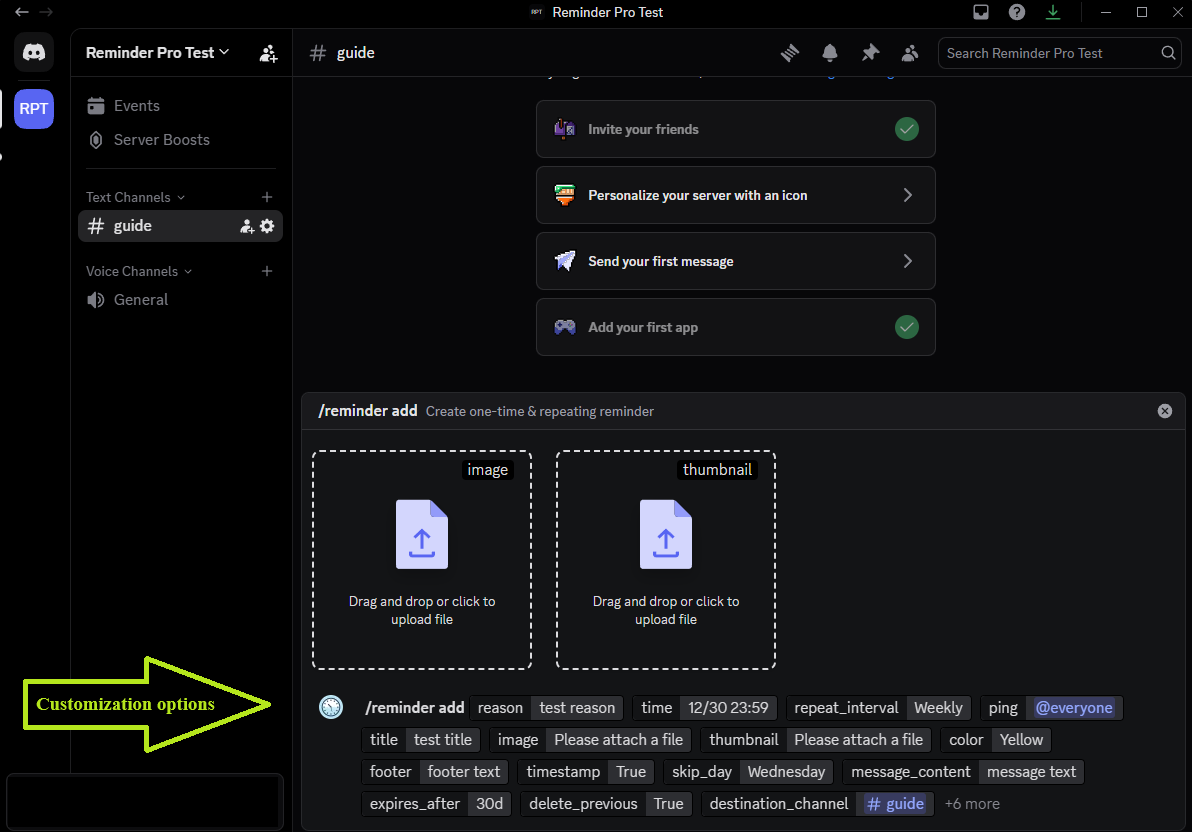
/reminder add.Click +19 more (or keep typing) to add optional settings:
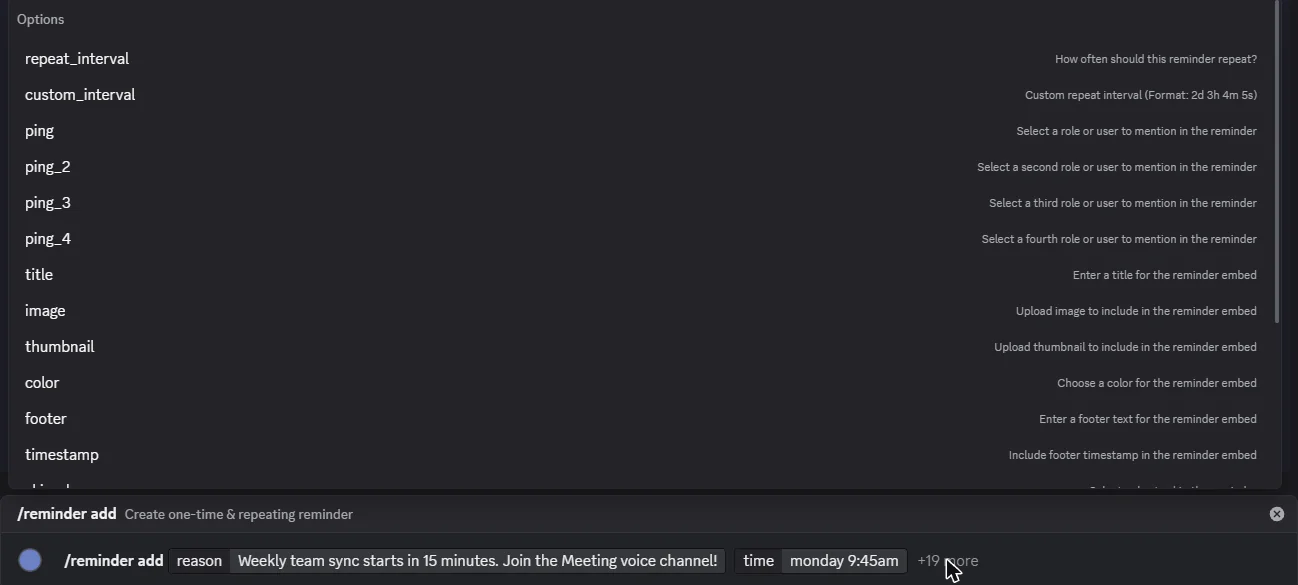
/reminder add.When the reminder is saved, the bot replies privately with the reminder ID (like #12345678), the target channel, the repeat schedule, skip days, the first send time and the expiration. Click Preview & Edit to check the message.
With the web dashboard
- 1Open the web dashboard and pick your server.
- 2In the Reminders tab, click Create Reminder.
- 3Fill in the Message, Schedule and Pings sections. A live preview shows the message as you type.
- 4Click Create reminder.
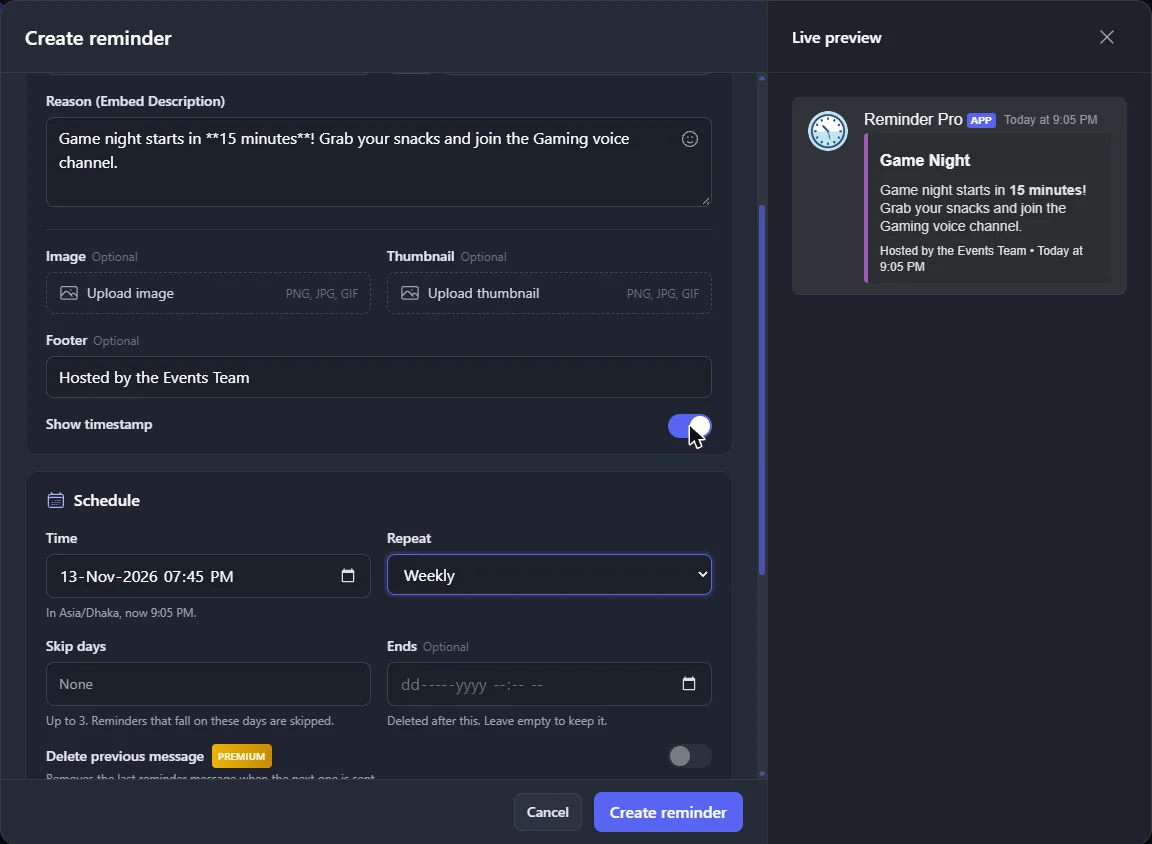
See Dashboard Reminders for every field of the editor.
Option reference
| Option | What it does | Limits |
|---|---|---|
| reason (required) | Main text of the reminder, shown in the embed | 4000 characters |
| time (required) | When the reminder is first sent. See Time Formats | Free: within 7 days |
| repeat_interval | Daily, Weekly, Monthly, Yearly or Custom. See Recurring Reminders | Monthly and Yearly are premium |
| custom_interval | Repeat length when repeat_interval is Custom, like 3d or 12h | Free: 24h to 7d. Premium: 30m and up |
| ping, ping_2, ping_3, ping_4 | Roles or members to mention. See Pings & Mentions | 4 mentions |
| title | Bold heading of the embed | 256 characters |
| image | Large image in the embed | 10 MB, PNG, JPG, WEBP, GIF, HEIC |
| thumbnail | Small image in the top right corner | 10 MB, same formats |
| color | Color of the embed edge | 25 presets |
| footer | Small text at the bottom of the embed | 2048 characters |
| timestamp | Shows the send time next to the footer | On or off |
| skip_day, skip_day2, skip_day3 | Weekdays on which the reminder stays quiet. See Skip Days | 3 days |
| message_content | Normal message text after the pings, above the embed | 2000 characters |
| expires_after | When the reminder deletes itself. See Expiration | Must be after the first send |
| delete_previous | Deletes the last reminder message before posting the next one | Premium |
| destination_channel | Where to post. Defaults to the current channel. See Channels & Threads | Text, announcement, voice chat or thread |
Examples
One-time reminder in 2 hours
/reminder add reason: Take a break and stretch! time: 2h
Weekly event with a ping
/reminder add reason: Game night starts now time: friday 8pm repeat_interval: Weekly ping: @Gamers title: Game Night color: Purple
Weekdays only, in another channel
/reminder add reason: Post your daily update time: 9am repeat_interval: Daily skip_day: Saturday skip_day2: Sunday destination_channel: #standup
Contest deadline for everyone
/reminder add reason: Submit your entry before midnight! time: 12/30 8pm ping: @everyone expires_after: 12/31 2026
Before you create a reminder
- The server timezone must be set.
- You need Manage Server or a staff role.
- The bot needs Manage Webhooks in the target channel.
- Free servers can have up to 3 reminders, premium servers up to 50. Paused reminders count too.
Questions
Can I create a reminder for a different channel without going there?
Yes. Set the destination_channel option, or pick the Channel field on the dashboard.
Can I change a reminder after creating it?
Yes. Click Preview & Edit in the confirmation, run /reminder edit, or open it on the dashboard. See Viewing & Editing Reminders.
How many reminders can I create?
3 per server on the free plan and 50 with premium. Premium servers can ask support for a higher limit.