
Quick Start
Set up Reminder Pro in five minutes: invite the bot to your Discord server, check channel permissions, set the server timezone and create your first reminder.
On this page
What you need
- A Discord account with Manage Server permission on the server. Discord requires it to add any bot.
- The channel where reminders should appear.
- Your timezone name, such as
America/New_York,Europe/LondonorAsia/Dhaka.
1. Invite the bot
- 1Open the invite link or click Add to Discord on the homepage.
- 2Pick your server in the Add to Server dropdown.
- 3Keep the requested permissions and click Authorize.
- 4Complete the captcha if Discord asks for one.
The bot posts a short welcome message in the first text channel it can write to, with links to the next steps.
2. Check channel permissions (optional)
You can usually skip this step. Reminder Pro is added with the permissions it needs, so it works in every channel, private ones included. Only if you removed permissions when adding the bot, allow View Channel and Manage Webhooks for the Reminder Pro role in that channel. See Permissions & Staff Roles.
3. Set your timezone
Reminders cannot be created until the server has a timezone. Run the command below and pick your city or region from the suggestions.
Command
/settings timezone set timezone: America/New_York
Read Server Timezone for details and a list of common timezone names.
4. Create your first reminder
Go to the channel where the reminder should appear and run /reminder add. Only reason and time are required.
Command
/reminder add reason: Daily standup starts in 10 minutes time: 9:50am repeat_interval: Daily

The bot replies privately with a confirmation like this:
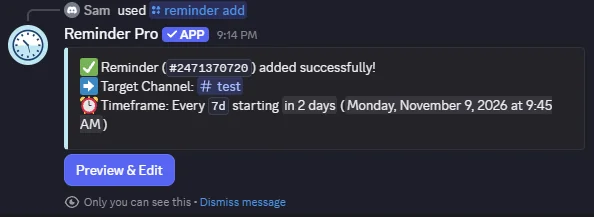
- Reminder ID, a number like
#1903679094. You use it to edit, pause or delete the reminder. - Target Channel, where the reminder will be posted.
- Timeframe, the repeat schedule and the first send time, shown in your own local time.
- A Preview & Edit button to see the message exactly as it will be posted.
5. Next steps
- Notify people with Pings & Mentions.
- Learn every way to write a time in Time Formats.
- Make it repeat with Recurring Reminders.
- Let moderators help through Permissions & Staff Roles.
- Prefer a visual editor? Open the Web Dashboard.
- Run
/helpany time for a menu of all commands and a time formats guide.
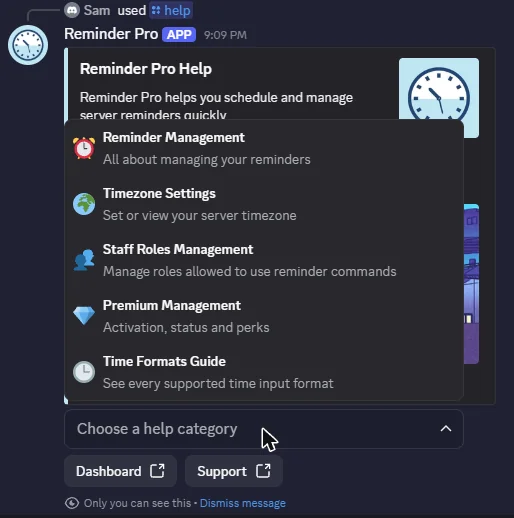
/help lets you browse every command by category.Questions
Why can't I see my server in the invite dropdown?
You need the Manage Server permission on that server. Ask the owner or an admin to add the bot.
The slash commands do not show up. What now?
Wait a minute and restart Discord (or press Ctrl+R on desktop). If they still do not appear, check that the bot is in the member list and that your role is allowed to use application commands in the channel.
Can I use the bot in direct messages?
No. Commands work only inside servers, and reminders are posted in server channels and threads.