
Dashboard Reminders
Create, search, filter, preview, edit, pause and delete Discord reminders in the Reminders tab of the Reminder Pro dashboard. Every editor field explained.
On this page
Reminder cards
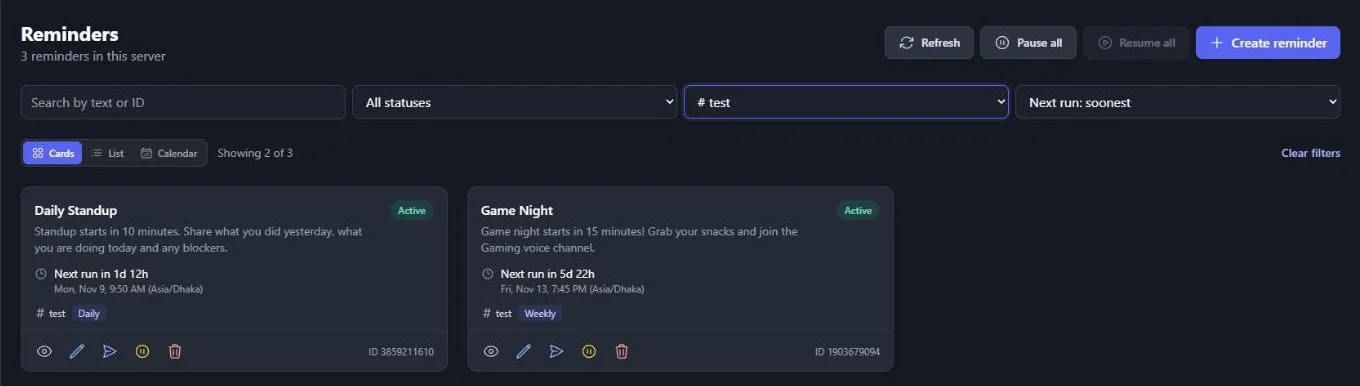
Each reminder appears as a card with its title, a short preview, status, next send time, channel, repeat interval and ID. The buttons on the card are Preview, Edit, Send test now, Pause (or Resume) and Delete.
Reminder status
Every reminder shows one of four statuses. When a reminder has an Error or is Inactive, its card explains why and shows a button to fix it. In List view, hover the button to read the explanation.
| Status | Meaning | What to do |
|---|---|---|
| Active | Scheduled and will send on time | Nothing |
| Paused | Kept, but not sending | Click Resume when you want it back |
| Error | Discord rejected the last delivery, for example because the webhook was deleted or the bot lost access to the channel | Click Fix, check the channel, and save. Saving sets the channel up again and clears the error |
| Inactive | Premium ended, so this premium reminder stopped. The card shows how many days are left before it is deleted | Click Go to Premium and reactivate within 30 days |
Preview opens the reminder exactly as it will look in Discord, without sending anything.
Search, filters and sorting
- Search matches the reminder text or ID.
- Status: All statuses, Active, Paused, or Needs attention.
- Channel: show only one channel.
- Sort: next run soonest or latest, newest first, or name A to Z.
- Clear filters resets everything.
- Refresh, Pause all and Resume all sit at the top. The list also updates live when reminders change in Discord.
Cards, List and Calendar views
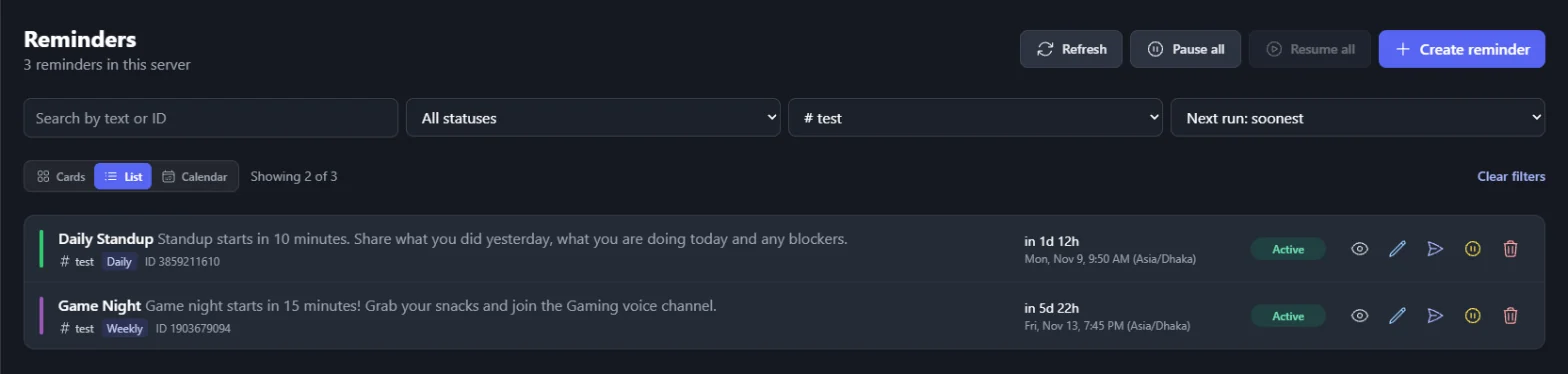
Switch views with the buttons above the reminders. Cards is the default. List fits more reminders on screen:
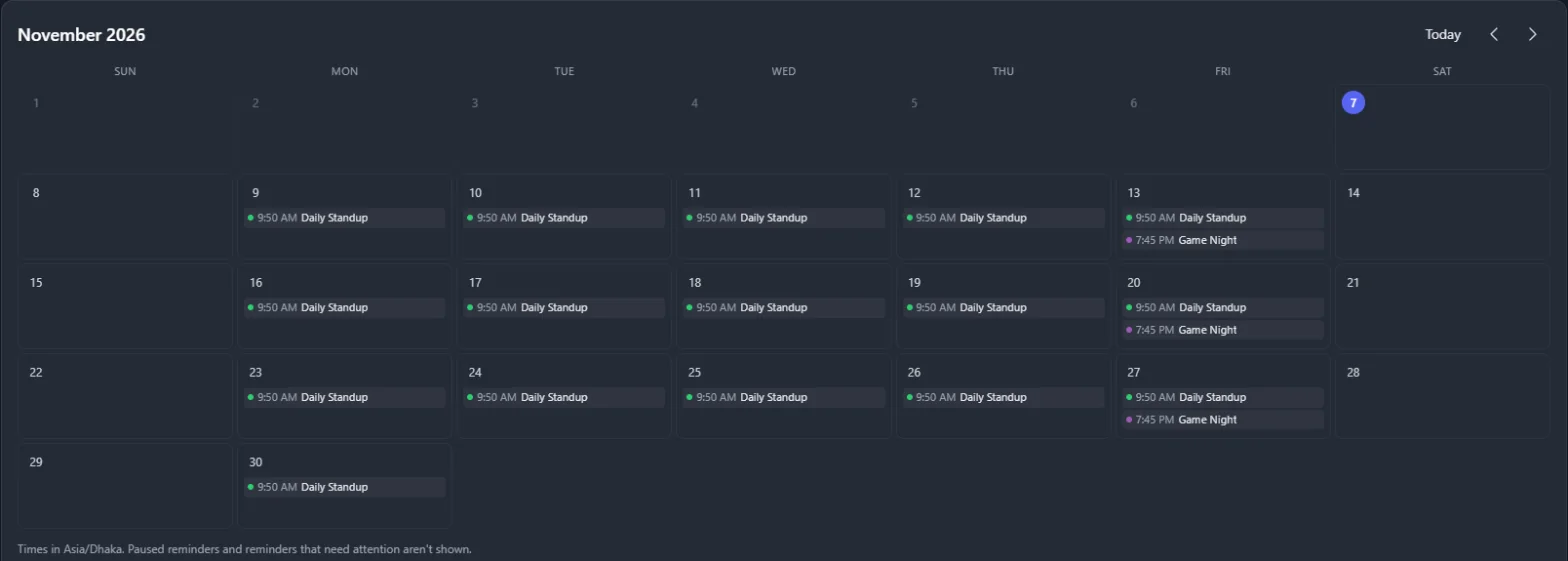
Calendar shows every upcoming run for a month. Paused reminders and reminders that need attention are not shown there.
Send a test
Send test now posts the reminder in its channel right away so you can see it for real. The message is marked as a test, pings are shown but do not notify anyone, and the reminder's schedule does not change.
Create a reminder
- 1Click Create reminder.
- 2In Message, pick a Channel and write the Reason. Add a title, color, images and footer if you like.
- 3In Schedule, pick a Time and optionally Repeat, Skip days and Ends.
- 4In Pings, choose roles and any Extra text.
- 5Check the live preview, then click Create reminder.
Editor fields
| Field | Notes |
|---|---|
| Message: Channel | Required. Also used to move a reminder |
| Message: Title, Color | Optional heading and any hex color |
| Message: Reason | Required, up to 4000 characters, with an emoji picker |
| Message: Image, Thumbnail, Footer, Show timestamp | Optional embed parts |
| Schedule: Time | Required. Date and time in the server timezone |
| Schedule: Repeat | Does not repeat, Daily, Weekly, Monthly, Yearly or Custom (like 2d 5h 30m) |
| Schedule: Skip days | Up to three weekdays |
| Schedule: Ends | When the reminder is deleted. Leave empty to keep it |
| Schedule: Delete previous message | Premium, recurring only |
| Pings: Roles | Up to four roles |
| Pings: Extra text | Text above the embed, including <@USER_ID> mentions |
Editing reminders created in Discord
Every reminder can be edited on the dashboard, wherever it was created. The one thing to watch is member pings: the dashboard pings roles only, so if a reminder created in Discord pings members, the editor warns you and offers Copy mentions to extra text to keep them. See Pings & Mentions.
Questions
Can I move a reminder to another channel?
Yes. Edit it on the dashboard and pick a new Channel.
Why do I get an error when I choose Monthly or Yearly?
Monthly and yearly repeats are premium features. Free servers can use Daily, Weekly or a Custom interval between 24 hours and 7 days. See Premium.